Two VMs on a host-only network and one allowlisted path out let a sample run while an AI agent helps. The two decisions that matter most are where the agent runs and what it may reach.
A malware analysis lab has conflicting requirements at first glance. On the one hand, we’d like the sample to interact with the systems it tries to contact, so we can observe its behavior. On the other, we need to isolate the lab to retain control and prevent the sample from causing harm. Meanwhile, some of our tools might need internet access, for instance to connect to an AI model or intelligence sources. Here’s one practical approach to set up your lab, using the REMnux toolkit.
The setup has four components.
At a high level, a malware analysis lab has the following components:
- Windows VM: Where you execute the malware sample (if it’s designed to run on Windows) to observe it with behavior analysis tools and interact with it using code-focused tools such as a debugger.
- REMnux: A VM or a container with analysis tools and the network services the sample might need. This is where you might also execute non-Windows malware samples.
- AI agent: It could run on a separate system, but more commonly it runs on REMnux. Regardless, the REMnux MCP server and tool-specific MCP servers help the agent interact with the malware analysis tools.
- AI model: A remote service in most setups, since few of us host a capable model locally.
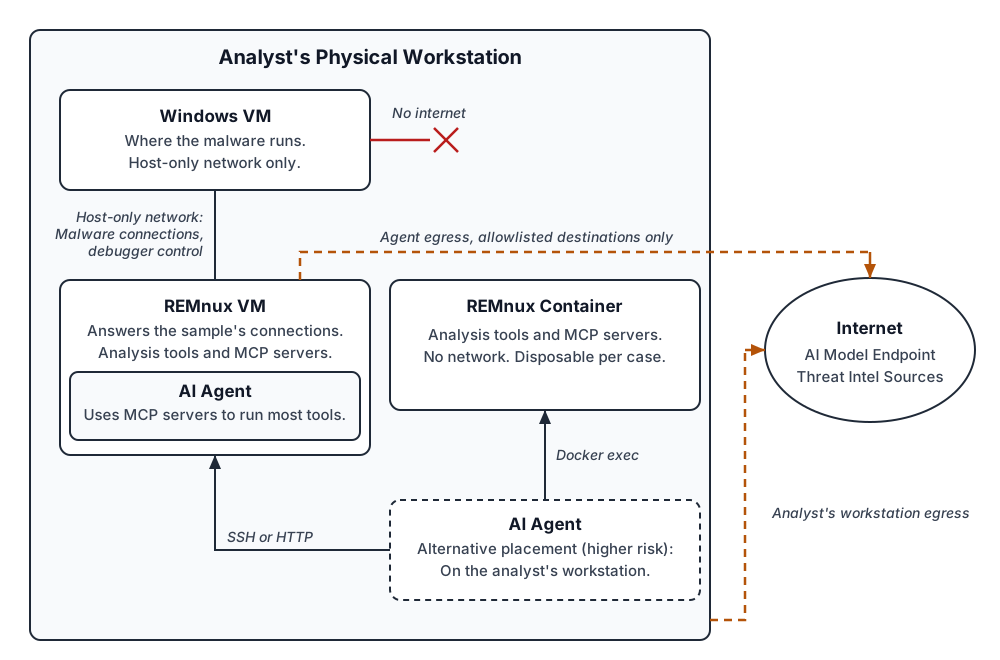
The Windows VM, REMnux, and the AI agent can run on a single physical system or in a cloud environment.
Running REMnux as a container is convenient, but a VM has advantages of its own. The VM’s desktop gives you easier access to tools with a graphical interface. And the hypervisor can attach the VM to its host-only network, which Docker Desktop can’t do for a container. You can also run both—the container for most tasks, the VM for the tools that need a desktop.
When the REMnux container runs on your workstation, the AI agent can run tools inside it through Docker exec. By default, a container has internet access through the host. Unless an agent inside it needs the AI model or other network resources, start it with --network none.
Put both VMs on one isolated network.
Connect the two VMs over a host-only virtual network, which has no internet access, so that they can communicate with each other. Inside the Windows VM, set REMnux as the DNS server and the default gateway. This way, any network traffic from a sample running on the Windows VM will arrive at REMnux, where you can bring up simulated services as the need arises. The host-only network will also allow the AI agent running on REMnux to access the Windows VM, for example to copy files or control a debugger running on Windows.
The services you launch on REMnux can respond to the sample’s connections. Without a response, many samples stall or exit. With one, the sample can continue, and you can observe what it does next. The fakedns service replies to every hostname lookup with the REMnux VM’s address to redirect hostname-based connections. For a sample that uses IP addresses instead, use the accept-all-ips script to redirect any destination IP to REMnux. Either way, tools such as INetSim or another listener can then respond on the port the sample targets.
By default, your physical workstation has a network adapter on the host-only network, too. This might give the sample running on the Windows VM the opportunity to try interacting with network services on your physical workstation. This is usually not a concern if your workstation is configured to block inbound access from the host-only network. However, if you’re concerned, remove the workstation’s adapter from the lab network. In VMware, define a dedicated virtual network without a host adapter. In VirtualBox, use an internal network, and in Hyper-V a private virtual switch. Keep the adapter if the AI agent or SSH transfers run from your workstation, since they’ll need that path to access REMnux.
You can transfer malware samples into the REMnux VM from your workstation using a USB key, drag-and-drop (if you enable it), or SSH. The SSH service on REMnux ships disabled, so enable it first. If the REMnux MCP server runs on your workstation, its upload tool can do this, too. The Windows VM can then download the sample from REMnux over the host-only network.
The AI agent can run on REMnux or on your workstation.
In this setup, the AI agent uses the REMnux MCP server to run REMnux tools. An agent with only a shell can run the same tools, but it then has to pick them, recall their flags, and read their raw output. The REMnux MCP server saves tokens and mistakes. It suggests the best tools for a task, returns structured results, and keeps noise out of the agent’s context window.
It’s usually best to run the REMnux MCP server on the REMnux VM or container, rather than on your workstation. The agent can run either inside REMnux or on your workstation:
- Everything on REMnux: This is the simplest setup and the one in the diagram above. REMnux will need internet access for the AI model.
- AI agent on your workstation: REMnux won’t need internet access, because the agent will connect to the AI model and intelligence sources from your workstation. The agent can also use the files, skills, and notes on your workstation. Prompt injection is a risk in either placement; however, in this scenario, a hijacked agent will act on your workstation instead of in a disposable VM.
Running the AI agent on your workstation is the higher-risk scenario. If you choose it, limit the agent’s permissions and network access at least as carefully as on REMnux. Better, run it in a sandbox that limits which files it can read and which servers it can connect to. Anthropic’s write-up on sandboxing Claude Code explains both boundaries. Directing the agent and verifying its findings are the subject of my AI-assisted malware analysis cheat sheet.
Restrict REMnux’s internet access.
If you’ll be running the AI agent on REMnux, you’ll need to give the agent access to a remote AI model. One way to achieve this is to assign a second network adapter to the REMnux VM, in addition to its host-only one. Connect that adapter to the hypervisor’s NAT network to give REMnux access to the network that your workstation can access, including the internet. (A REMnux container has internet access through the host by default, so the adapter step applies only to the VM.)
It’s a good idea to restrict internet-bound access on REMnux. This minimizes the damage the agent on REMnux can do if the malware it analyzes manipulates it through prompt injection. A sample can contain text addressed to the agent, such as a request to fetch and run a file. This matters even more if you run a sample on REMnux itself. The malware then shares the machine with the agent’s credentials and that internet path. In addition, the restriction prevents the agent from installing additional tools in your environment without your approval.
REMnux includes an opt-in script for this purpose, restrict-egress. List the allowed destinations in /etc/restrict-egress.conf, one per line, as domains, IP addresses, or CIDR ranges. Then run sudo restrict-egress on. (In a container started with the NET_ADMIN capability, run restrict-egress apply instead.)
Keep the allowlist short: The AI model’s endpoint can be the only entry. If you want to grant the AI agent on REMnux access to intelligence sources, you can add them to the allowlist too. Each allowed destination is one more place a manipulated agent can send data to or fetch files from. When a task does need egress from REMnux, stop the agent, open egress, and close it when you’re done.
Plan around the egress allowlist’s two limits.
An egress allowlist inside the REMnux VM covers most cases, with two limits:
First, an agent on REMnux, or a sample run there as the default user, can turn off the egress restrictions. On stock REMnux, the default user can run commands as root without a password via the sudo command. To address this, you can run the AI agent as a user without sudo access or treat in-VM egress restrictions as a guard against mistakes. Alternatively, you can enforce egress restrictions with the firewall on your physical workstation, which the agent cannot change.
Second, the allowlist rules enforced by restrict-egress match addresses and ports, even for a domain entry. If an allowed address belongs to a shared content delivery network, the AI agent can connect to everything behind it.
Open a temporary internet path for the Windows VM.
Your analysis may require connecting the Windows VM to the internet briefly, say, to interact with a suspicious website. You can do this by routing the traffic through the REMnux VM, if it has the NAT adapter described above. Here’s what to do on REMnux, as root:
- Forwarding: Run
sysctl -w net.ipv4.ip_forward=1. The kernel then routes the Windows VM’s packets out through the NAT adapter. - Forward rules: Docker on REMnux sets the forwarding policy to drop, so run
iptables -I FORWARD -j ACCEPTfor the duration. - Masquerading: Run
iptables -t nat -A POSTROUTING -o ens34 -j MASQUERADE, with ens34 replaced by your NAT adapter’s name. The hypervisor’s NAT device can’t route replies back to the host-only network. iptables then rewrites the Windows VM’s traffic to look like REMnux’s. - Simulated services: Stop fakedns, INetSim, and the accept-all-ips redirection if they’re running. Otherwise they’ll keep answering in place of the real services.
- DNS: Point the Windows VM at a public DNS resolver, since it normally uses REMnux for DNS. Its lookups will then flow through REMnux like the rest of the traffic.
Keep the following in mind while the path to the internet from the Windows VM is open:
- Allowlist: The restrict-egress script filters only REMnux’s own connections, so it won’t filter this traffic.
- Exposure: The sample can interact with malicious infrastructure, attack other systems, and connect to your local network through the NAT network.
- Point of origin: Operators of the infrastructure that you or the sample connects to might see your network’s public address. Threat actors might use this information to track your research activities or to serve you different content. You can mitigate this concern by connecting through a VPN such as AlgoVPN.
- Workstation firewall: If your workstation’s firewall also restricts REMnux’s egress, it will block this traffic until you relax it.
Steps for setting up your lab.
To sum up, you set up your malware analysis lab by following these steps:
- Create a host-only virtual network, and give the Windows VM that interface only.
- Decide whether REMnux runs as a VM, a container, or both.
- If you run a REMnux VM, point the Windows VM at it for DNS and as its default gateway.
- Decide where to run your AI agent, on REMnux (recommended) or your physical workstation.
- If the AI agent runs on REMnux, give the VM a NAT interface. Use the restrict-egress script to allow access only to the destinations you need, such as the AI model’s endpoint. Consider further restricting outbound access with your workstation’s firewall.
- To allow your Windows VM to access the internet for an experiment, use a VPN and configure the REMnux VM to forward the traffic.
Start with the isolated network, choose where the agent runs, and treat every other connection as a deliberate decision.