Critical Log Review Checklist for Security Incidents
This checklist covers log review for incident response and routine monitoring: copy logs centrally, minimize noise by removing benign entries, verify timestamps, focus on changes and failures, work backwards in time, and correlate across sources. Includes specific entries to find on Linux, Windows, network devices, and web servers.
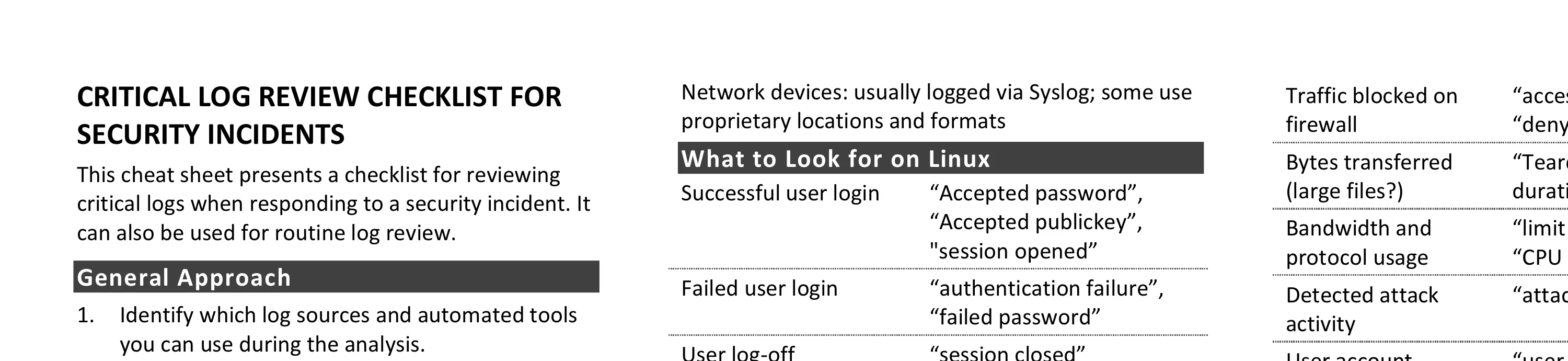
This cheat sheet presents a checklist for reviewing critical logs when responding to a security incident. It can also be used for routine log review. It was authored by Dr. Anton Chuvakin and Lenny Zeltser. To print, use the one-sheet PDF version; you can also edit the Word version for you own needs. If you like this, take a look at my other IT cheat sheets.
General Approach
- Identify which log sources and automated tools you can use during the analysis.
- Copy log records to a single location where you will be able to review them.
- Minimize “noise” by removing routine, repetitive log entries from view after confirming that they are benign.
- Determine whether you can rely on logs’ time stamps; consider time zone differences.
- Focus on recent changes, failures, errors, status changes, access and administration events, and other events unusual for your environment.
- Go backwards in time from now to reconstruct actions after and before the incident.
- Correlate activities across different logs to get a comprehensive picture.
- Develop theories about what occurred; explore logs to confirm or disprove them.
Potential Security Log Sources
- Server and workstation operating system logs
- Application logs (e.g., web server, database server)
- Security tool logs (e.g., anti-virus, change detection, intrusion detection/prevention system)
- Outbound proxy logs and end-user application logs
- Remember to consider other, non-log sources for security events.
Typical Log Locations
- Linux OS and core applications: /var/log
- Windows OS and core applications: Windows Event Log (Security, System, Application)
- Network devices: usually logged via Syslog; some use proprietary locations and formats
What to Look for on Linux
| Event | Log Entry |
|---|---|
| Successful user login | ”Accepted password”, “Accepted publickey”, “session opened” |
| Failed user login | ”authentication failure”, “failed password” |
| User log-off | ”session closed” |
| User account change or deletion | ”password changed”, “new user”, “delete user” |
| Sudo actions | ”sudo: … COMMAND=…”, “FAILED su” |
| Service failure | ”failed” or “failure” |
What to Look for on Windows
Event IDs are listed below for Windows 2000/XP. For Vista/7 security event ID, add 4096 to the event ID.
Most of the events below are in the Security log; many are only logged on the domain controller.
User logon/logoff events
Successful logon 528, 540; failed logon 529-537, 539; logoff 538, 551, etc
User account changes
Created 624; enabled 626; changed 642; disabled 629; deleted 630
Password changes
To self: 628; to others: 627
Service started or stopped
7035, 7036, etc.
Object access denied (if auditing enabled)
560, 567, etc
What to Look for on Network Devices
Look at both inbound and outbound activities.
Examples below show log excerpts from Cisco ASA logs; other devices have similar functionality.
Traffic allowed on firewall
“Built … connection”, “access-list … permitted”
Traffic blocked on firewall
“access-list … denied”, “deny inbound”, “Deny … by”
Bytes transferred (large files?)
“Teardown TCP connection … duration … bytes …”
Bandwidth and protocol usage
“limit … exceeded”, “CPU utilization”
Detected attack activity
“attack from”
User account changes
“user added”, “user deleted”, “User priv level changed”
Administrator access
“AAA user …”, “User … locked out”, “login failed”
What to Look for on Web Servers
Excessive access attempts to non-existent files
Code (SQL, HTML) seen as part of the URL
Access to extensions you have not implemented
Web service stopped/started/failed messages
Access to “risky” pages that accept user input
Look at logs on all servers in the load balancer pool
Error code 200 on files that are not yours
Failed user authentication
Error code 401, 403
Invalid request
Error code 400
Internal server error
Error code 500
Other Resources
- Windows event ID lookup
- A listing of many Windows Security Log events
- A list of open-source log analysis tools
- Anton Chuvakin’s log management blog
- Other security incident response-related cheat sheets
Post-Scriptum
Special thanks to Anand Sastry for providing feedback on this cheat sheet. If you have suggestions for improving this cheat sheet, please let us know. This cheat sheet is also hosted on Dr. Anton Chivakin’s website. This cheat sheet is distributed according to the Creative Commons v3 “Attribution” License. File version 1.0.1.